
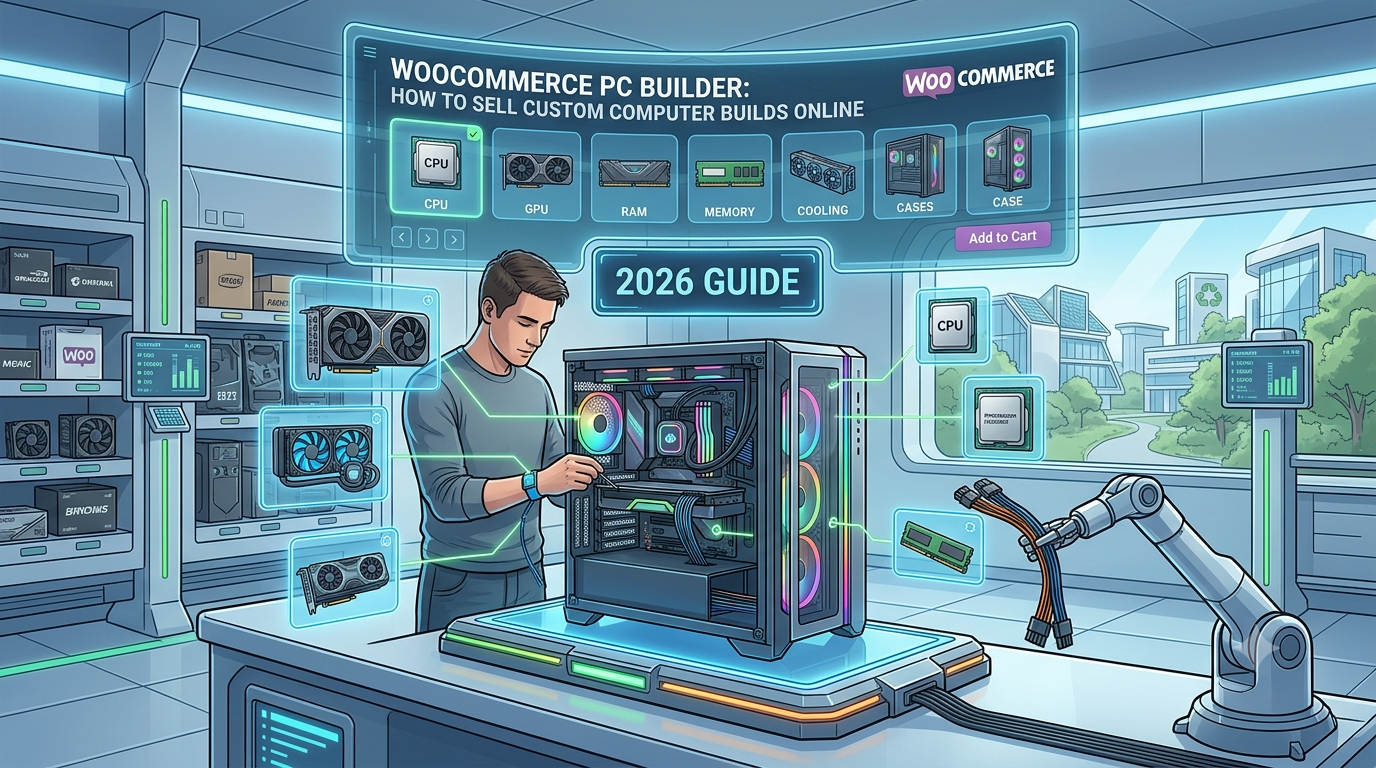
If you sell custom-built PCs through WooCommerce — gaming rigs, workstations, or made-to-order builds — you’ll know this is one of the most demanding product customisation problems in e-commerce: a build might involve a dozen or more independent component choices, each affecting price, and many components only make sense in combination with certain others.
A CPU choice affects which motherboards are compatible. A case size limits which graphics cards will physically fit. Standard WooCommerce variations have no concept of any of this — they assume a fixed, manageable list of combinations, and a real PC build has far more possible combinations than that, most of which aren’t even valid builds.
This guide covers how to set up a genuine PC builder in WooCommerce.
Why PC building is a harder configurator problem than most
Most configurable products (furniture, print, even software licensing) involve options that combine fairly freely. PC building is different:
- A large number of independent component groups — CPU, motherboard, RAM, storage, GPU, PSU, case, and cooling can each be their own choice, all affecting the total price together
- Compatibility constraints between components — not every combination is valid; a customer shouldn’t be able to select an incompatible CPU and motherboard, or a GPU that won’t physically fit the chosen case
- Price varies significantly by component, not just a flat adjustment — a high-end GPU choice might add hundreds of pounds where a RAM upgrade adds a much smaller amount, and customers want to see the running total update as they build
- Visual identification matters — component photos help less technical customers recognise what they’re choosing, particularly for case and cooling options where appearance is part of the decision
How this works in practice
Each component category is set up as an independent option group with its own price adjustments, combining into one live total:
Total = Base build price + CPU adjustment + GPU adjustment + RAM adjustment + Storage adjustment + ...
For example: a £600 base build, with a GPU upgrade adding £250 and extra RAM adding £40:
Base build: £600
+ GPU upgrade: £600 + £250 = £850
+ RAM upgrade: £850 + £40 = £890
Conditional visibility handles the compatibility problem — for example, only showing motherboard options compatible with the selected CPU socket, or hiding GPU options too large for a selected small-form-factor case, rather than letting customers configure an invalid build.
Setting this up in WooCommerce
The usual approaches:
1. Standard WooCommerce variations. Completely impractical at this scale — the number of theoretical component combinations for even a modest PC builder is far beyond what a variation grid can manage.
2. Fixed pre-built configurations only. Simple to list, but removes genuine choice — customers wanting a specific component swap have to contact you directly, which adds friction to what should be a self-serve purchase for anyone confident in their own build.
3. A purpose-built configurator with compatibility-aware option groups, where each component category combines independently into one live total, with incompatible combinations hidden automatically.
This is what Woo State Configurator is built for — each component group can be displayed as image swatches (useful for cases and cooling, where appearance matters) or buttons/dropdowns for more technical specs, combining into one live-updating total. Conditional option visibility hides incompatible choices automatically based on earlier selections, and custom meta fields attach the final build’s component list to the order as structured data for your build/fulfilment process to read. It’s built on State.js, so the whole build experience updates instantly with no jQuery dependency, even across a large number of option groups.
What to check before you buy a PC builder plugin for WooCommerce
- Can it handle a large number of independent option groups without becoming slow or unwieldy?
- Does it support conditional visibility, so incompatible components can be automatically hidden rather than relying on the customer to know compatibility rules themselves?
- Can components be displayed visually where appearance matters (case, cooling), and as simpler buttons or dropdowns where it doesn’t?
- Does the final build’s component list attach to the order as structured data your fulfilment process can read?
- Is the total price recalculated server-side at checkout, so component selections can’t be manipulated in the browser?
FAQ
How do I stop customers building an incompatible combination? Conditional visibility lets later option groups depend on earlier choices — for example, only showing motherboards compatible with a selected CPU socket — so incompatible combinations are hidden rather than left for the customer to accidentally select.
Can I show real-time stock availability per component? Yes — stock can be set per option, so a component that’s out of stock can be automatically marked unavailable without affecting the rest of the build.
Does this send the final build list anywhere for fulfilment? The configurator attaches the selected components as structured order data; actually routing that to a build queue, inventory system, or fulfilment process needs something on your side reading that data from the order, similar to the routing approach covered in our guide to configurator custom order meta.
Selling custom-built PCs or workstations through WooCommerce? Woo State Configurator handles large, compatibility-aware component builds with live, accurate pricing.
Leave a Reply