
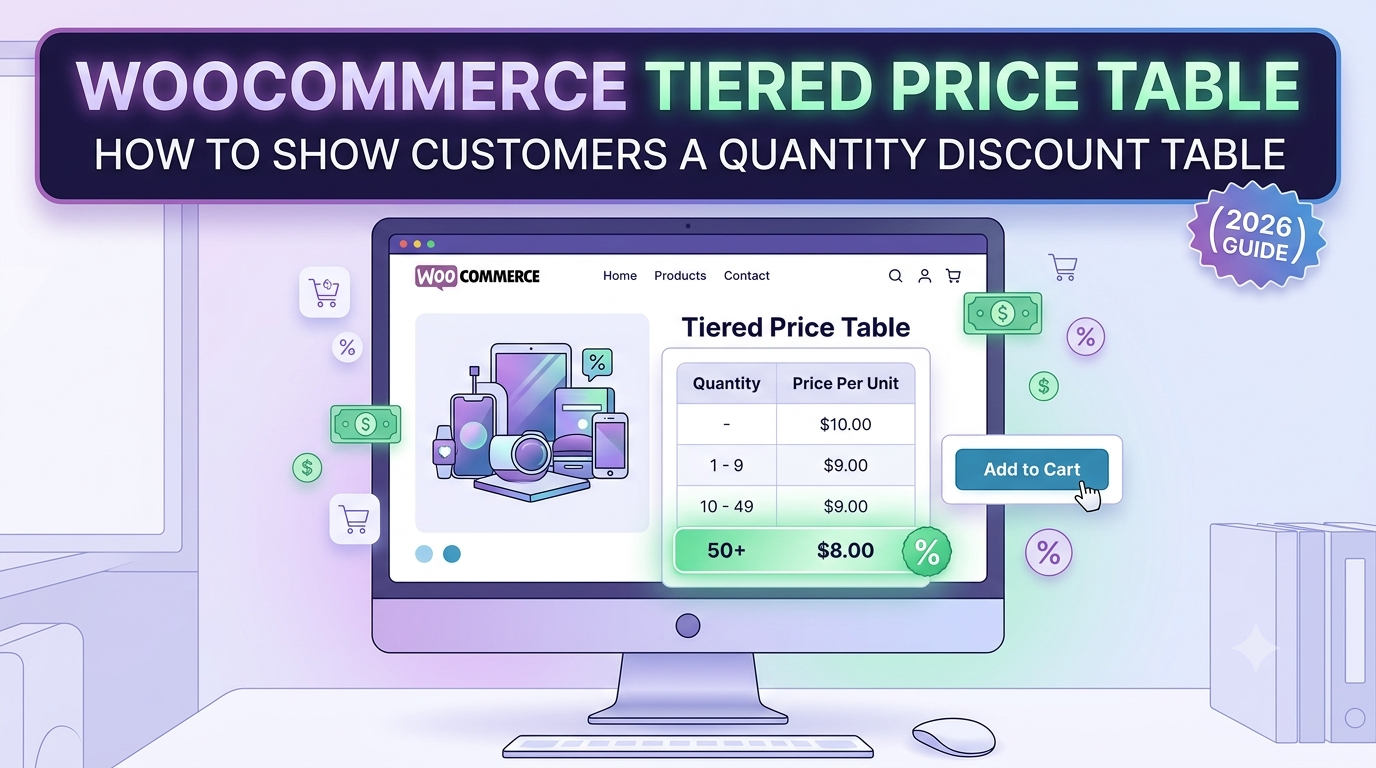
If you offer quantity-based discounts through WooCommerce, showing customers a clear tiered price table — “1-9: £5 each, 10-49: £4.50 each, 50+: £4 each” — does something a hidden discount rule can’t: it shows the incentive to buy more before the customer has committed to a quantity, rather than surprising them with a lower total at checkout.
A discount that only appears after a customer types in a large quantity is easy to miss entirely. A visible table showing the breakpoints up front actively encourages customers to round up to the next tier, which is exactly the psychology that makes tiered pricing effective in the first place.
This guide covers how to set up and display genuine tiered pricing in WooCommerce.
Why the table itself matters, not just the discount logic
Plenty of plugins can apply a quantity discount behind the scenes. Fewer show it clearly:
- Visibility drives the behaviour you want — a customer who can see “buy 10 more and save 15%” is actively nudged toward the next tier; a customer who has to guess or discover the discount at checkout isn’t
- Transparency builds trust, especially for larger or trade orders where the buyer wants to understand exactly how their price was calculated, not just see a final number
- The table needs to update live alongside the actual quantity a customer has entered, so it’s showing their real, current pricing position, not a generic static reference table disconnected from what they’re actually about to buy
How this works in practice
Rather than a static image or a separate page listing prices, a genuinely useful tiered table is generated from the same conditional pricing rules driving the actual calculation, and shows the customer’s live position:
Rule: if quantity ≥ 10 then apply 10% discount
Rule: if quantity ≥ 50 then apply 20% discount
Displayed as a table:
1–9 units:   £5.00 each
10–49 units: £4.50 each  (10% off)
50+ units:   £4.00 each  (20% off)
As the customer adjusts their quantity, both the calculated total and the table showing where they currently sit update together — so the table isn’t just informational, it’s tied directly to their live order.
Setting this up in WooCommerce
The usual approaches:
1. A static image or text list of pricing tiers. Easy to add, but disconnected from the actual cart calculation — if pricing changes, the image or text has to be manually updated separately, and it doesn’t reflect where the customer currently sits.
2. Hidden discount logic with no visible table. The discount still applies correctly, but customers have no visibility into the incentive to buy more, which undercuts the psychological effect tiered pricing is meant to have.
3. A configurator with conditional pricing rules and a live pricing breakdown, where the table and the actual calculation are the same underlying data.
This is what Woo State Configurator is built for — conditional pricing rules define the tiers, and the pricing breakdown display shows customers exactly how their current quantity is being priced, updating live as they adjust it, with the same rule enforced server-side at checkout. It’s built on State.js, so there’s no jQuery dependency and no layout shift as the table and total update together.
What to check before you set up a tiered price table in WooCommerce
- Is the displayed table driven by the same rules as the actual price calculation, or a separate static element that can fall out of sync?
- Does it show the customer’s current position (which tier they’re in right now), not just a generic reference table?
- Does the total update live as quantity changes, alongside the table?
- Is the discount enforced server-side at checkout, so it can’t be bypassed by manipulating the submitted quantity or price?
FAQ
How many tiers should I offer? This depends on your margins and typical order sizes — two or three tiers is usually enough to create a clear incentive without overcomplicating the table; too many tiers can make the table harder to scan quickly.
Can I combine tiered quantity pricing with other options, like size or material? Yes — since quantity-based rules and other option groups are calculated independently and combined into one total, a tiered discount applies on top of whatever other options are selected, not instead of them.
Should the discount percentage or the final per-unit price be shown in the table? Either works, and some stores show both — the per-unit price is often clearer for quick comparison, while the percentage reinforces the size of the saving.
Want to show customers a live, accurate tiered pricing table on your WooCommerce store? Woo State Configurator ties the displayed table directly to the same rules calculating the price.
Leave a Reply